
First of all, thank you for the canned script for installing Teams on AVD. We currently use it any time a host is powered-down. It's done a great job, keeping Teams up-to-date - until now. We're switching the whole company to "New Teams", starting on March 1. I'd like an updated script to uninstall any version of Teams found, then install the latest version, as-per the documentation here: https://learn.microsoft.com/en-us/microsoftteams/new-teams-vdi-requirements-deploy. I think this would be valuable to quite a lot of customers, as Microsoft is phasing-out "classic" Teams right now.
Add a script for updating/installing "New Teams"
7

Thanks for the input, Jeff! I'll let the product team confirm or deny, but I do believe there is a scripted action being built for this. Craig Hinchliffe or Toby Skerritt do you mind chiming in here?

thats correct Kris Gillette should be in an up and coming release :)
Great news, thank you. In our environment, we're forcing everyone outside of AVD to "New Teams" on 3/1. Today, users have an option to use it or not. Any chance that script can be shared early, or will the new version be available before the end of the month?
Jeff Lamb this should now be available

I was looking in to this, and it sounded like new Teams requires the latest fslogix 2210 hf3 needs to be installed. It looks like that just left public preview. Does NME 5.7.0 include this? I don't think fslogix or avd agent versions ever get presented in the release notes so I don't know how to confirm if a new version includes it without upgrading our instance and then viewing it from the Updates info bar.
Andrew Marx the AVD Agent and FSLogix Agent Updates should be called out in the release notes (latest example is the 5.5.1 release notes that call out the change in AVD Agent "Agents Update: AVD agent v1.0.7755.1800 is included in this release."). The latest FSLogix Agent update I see called out in the notes is quite old; Toby Skerritt or Craig Hinchliffe can we take a look to be sure this is included?
To answer your question about 5.7.0 specifically, it includes the FSLogix 2210 hotfix 2 (2.9.8612.60056) version.
Hey Andrew Marx we typically do update these agents on a monthly basis, typically in the GA release rather than the public preview release, its a good point on these agents, let me see if we can get these added for each release moving forwards and also let me confirm what we are currently shipping.
In regards to the FSLogix agent dependancy let me speak with our dev team and come back to you.
Hey Andrew Marx ok so there seems to be a fix in the latest FSLogix agent
https://learn.microsoft.com/en-us/microsoftteams/new-teams-vdi-requirements-deploy
It does work but from initial conversations with engineering the user has to go through the setup each time which is obviously sub optimal, they are double checking this, but likely tomorrow before I can share anything else with you.
I'm not under the same pressure to push users over so I don't mind waiting for the fslogix 2210 hf3 to be pushed by Nerdio before deploying new Teams. I didn't catch the fslogix requirement before installing new Teams, which didn't work once deployed -- it was easy to switch back though.

I must be missing something but it seems like when the NEW teams is installed in the Gold Images it doesn't persist / work correctly when sysprep'd and pushed to a hostpool. Anyone got this working?
George Zajakovski you may need the newer FSLogix agent, its just come out of GA, this is what Andrew was referencing, we will push the new version when 5.7 goes GA, but you can test this by downloading the latest version.
https://learn.microsoft.com/en-us/fslogix/overview-release-notes#fslogix-2210-hotfix-3-29878463912
Changes
- Update: When new Teams is detected, the AppX package is registered for the user during sign-in using the family name.
-
Update: During user sign-out, Teams user data/cache located in
%LocalAppData%\Packages\MSTeams_8wekyb3d8bbwe\LocalCachewill be saved in the container. - Fix: Resolved an issue where a virtual machine would reboot unexpectedly as a result of bug check (various stop codes) when a user's redirects were removed before sign-out.
Just tested this and it still comes up broken. Its installed but greyed out - nothing happens when launching. (after image capture / sysprep) Deploying it with a scripted action during VM creation is the only way it works. 

Hi George Zajakovski - this seems like it may be an app registration issue after sysprep. I haven't tested specifically, but it could be that the app is not being provisioned for users. The script we created was designed for use on VMs, rather than images.
Hopefully some of the ideas below may help.
The below command lists out the teams packages provisioned for all users on the VM
Get-AppxPackage -AllUsers -Name *teams
MS Guidance on provisioning packages for images (you should be able to construct a registration command based on this):
https://learn.microsoft.com/en-us/powershell/module/dism/add-appxprovisionedpackage
Or alternatively, the below command should re-register all default provisioned packages for all users (unsure if teams falls into this category yet):
Get-AppxPackage -AllUsers| Foreach {Add-AppxPackage -DisableDevelopmentMode -Register "$($_.InstallLocation)\AppXManifest.xml"}

Toby Skerritt Is this something that can be worked into the script provided by Nerdio? We do use these scripts on the base images more often than the VMs/hosts themselves. I too experienced the same issue George Zajakovski. I've not found a fix for this yet. I've also not yet tried it after the fact on a running host. Seems that worked for you? On a clean image, new test pool, and clean/new FSLogix profile, I don't see why this wouldn't work without needing to register the appx packages for it or run it on the host after the fact. It's supposed to do that with the latest FSLogix GA code that came in Nerdio 5.7.2
Given the start of this thread about the provided script, I also wanted to comment that it does not remove the "new" teams installers, etc. if we wanted to run this each month on our base images like the Teams classic script had. This would also be a nice correction/fix to the new teams provided script.
In addition, here are a few things I've found which I think could also improve the script which were taken from a few Microsoft posts and this blog: Don’t Delay: Upgrade Classic Teams to New Teams in your VDI/MultiSession environment before June 30th! – De Technische Jongens
First is adding a way to disable auto-updates:
# Disable Teams Automatic Updates
$RegKey = 'HKLM:\SOFTWARE\Microsoft\Teams'
$KeyName = 'disableAutoUpdate'
$KeyValue = 1 # Note: Use an actual numeric value for DWORD
if (-not (Test-Path $RegKey)) {
New-Item -Path $RegKey -Force
}
# Create or modify the registry property as a DWORD
$RegItem = Get-ItemProperty -Path $RegKey -Name $KeyName -ErrorAction SilentlyContinue
if ($RegItem) {
# Property already exists, update its value
$RegItem.$KeyName = $KeyValue
Set-ItemProperty -Path $RegKey -Name $KeyName -Value $RegItem.$KeyName
} else {
# Create a new property with DWORD type
Set-ItemProperty -Path $RegKey -Name $KeyName -Value $KeyValue -Type DWORD
}
Another is ensuring the meeting addin is installed so that it works for all users. The default way it installs (as described in that link above) doesn't work for some orgs. So here is a way to do so.
# This installs the Microsoft TeamsMeeting Addin for Microsoft Outlook to the Program Files (x86) so it works for all users.
#https://learn.microsoft.com/en-us/microsoftteams/new-teams-vdi-requirements-deploy#teams-meeting-add-in
# Specify the base path
$basePath = 'C:\Program Files\WindowsApps'
# Find the folder starting with "MSTeams"
$teamsFolder = Get-ChildItem -Path $basePath -Filter 'MSTeams*' -Directory | Select-Object -First 1
# Check if a matching folder is found
if ($teamsFolder -eq $null) {
Write-Host "MSTeams folder not found."
} else {
# Extract version from folder name
$version = ($teamsFolder.Name -split "_")[1]
# Construct the full path to the MSI file
$msiPath = Join-Path -Path $teamsFolder.FullName -ChildPath 'MicrosoftTeamsMeetingAddinInstaller.msi'
# Construct and execute the msiexec command using Start-Process
Start-Process -FilePath 'msiexec.exe' -ArgumentList "/i `"$msiPath`" Reboot=ReallySuppress ALLUSERS=1 /qb TARGETDIR=`"C:\Program Files (x86)\Microsoft\TeamsMeetingAddin\$version`"" -Wait
}
#Add Registry Keys for loading the Add-in
New-Item -Path "HKLM:\Software\Microsoft\Office\Outlook\Addins" -Name "TeamsAddin.FastConnect" -Force -ErrorAction Ignore
New-ItemProperty -Path "HKLM:\Software\Microsoft\Office\Outlook\Addins\TeamsAddin.FastConnect" -Type "DWord" -Name "LoadBehavior" -Value 3 -force
New-ItemProperty -Path "HKLM:\Software\Microsoft\Office\Outlook\Addins\TeamsAddin.FastConnect" -Type "String" -Name "Description" -Value "Microsoft Teams Meeting Add-in for Microsoft Office" -force
New-ItemProperty -Path "HKLM:\Software\Microsoft\Office\Outlook\Addins\TeamsAddin.FastConnect" -Type "String" -Name "FriendlyName" -Value "Microsoft Teams Meeting Add-in for Microsoft Office" -force
I hope there is a fix/workaround for the new teams being greyed out and unable to be launched soon.
First, the FSLogix options listed out now is awesome! Second, perhaps this InstallAppxPackages needs to be set to 1?
I had noticed that the package was listed in my manifest file but the new teams app was still greyed out and wouldn't launch. I'm going to go test this to see if it helps!
Dustin Plank thanks for the update! Please let us know how the testing goes. I believe teams would need to be listed in the XML, so it may be worth checking this before running through the build process.
Craig Hinchliffe there are perhaps some some modifications required to the script based on this discussion. Thanks.
I had hoped that maybe it was an issue with not having the latest fslogix binaries installed on the master image, so I updated that, removed new Teams via the bootstrapper (-x), reinstalled (-p -o "full\path\to\msteams.msix"), and ran through capture&deploy -- no luck :(
The error in the logs is the same as it was on my previous attempts:
[ERROR:80073cf1] MSTeams installation error: Windows cannot perform the RegisterByPackageFamilyName operation because it could not find MSTeams_8wekyb3d8bbwe in the repository. Make sure MSTeams_8wekyb3d8bbwe has been staged or was installed by another user. (Package was not found.)
It looks like InstallAppxPackages is set to 1 by default, so it shouldn't need to be set manually unless someone wants to disable that, right?
Hi Andrew Marx - it seems others may be facing the same issue, it is include in a post on the MS tech community forums (fyi below). Yes you are correct 1=enabled, 0=disabled.
Setting the FSLogix option to 1 for InstallAppxPackages didn't make a difference in my testing unfortunately. I'm trying with a fresh image, pool, and host vs my existing one having turned that option on after the fact.
I've read through that Microsoft Community post and others are seeing something similar for sure. Hopefully there is a workaround/fix coming soon.
Andrew Marx - by chance in your Teams admin portal have you set the new Teams as the default in your update policy?
I came across this doc: Bulk deploy the new Microsoft Teams desktop client - Microsoft Teams | Microsoft Learn, which I blissfully ignored because why would I need to know how to deploy the new Teams when we have the provided script. Well, further down that doc is "Step 2" (Bulk deploy the new Microsoft Teams desktop client - Microsoft Teams | Microsoft Learn).
We only had the global (org-wide default) set under our Update policy as such

So I made a new update policy and assigned it to myself.
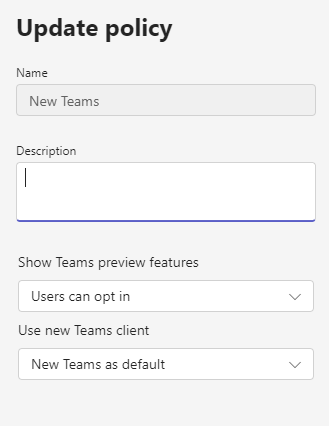
Within seconds of doing so, I noticed on my test host session that the new Teams application was no longer greyed out in my Start Menu. I clicked it and it launched.
So far so good. I'll sign out/sign in, change some settings, etc. to see if everything sticks between sessions.
Who would have figured that the policy was preventing it from running in the first place. <sigh>

Taken from another thread, if you do a sysprep with the /mode:vm parameter people are finding Teams broken if installed on the image, if you sysprep without the /mode:vm parameter then New Teams will work. My guess is that Nerdio is appending /mode:vm to sysprep hence why Teams isn't working if installed on the image,

Hi, Can someone please help me to provide the script so that we can push new Teams on AVD by nerido Manager?
Just tested this, so I deployed an image that as sysprepped by Nerdio which had the new teams installed, found Teams greyed out and not working. I then cloned and manually sysprepped and generalised the image outside of Nerdio, I then deployed the image with Nerdio and New Teams has continued to work. So if Nerdio is applying the /mode:vm switch then that will be the cause, anyway to stop that? Guess we just wait for Microsoft to sort.

Has anyone else noticed recently that using the "Install Microsoft Teams (new)" script directly on the host doesn't work anymore and new Teams doesn't open? The tile on the Start menu is grayed out, and after clicking it, it says, "There's a problem with Microsoft Teams (work or school). Reinstall the application from its original install location or contact your administrator."
This just started after the April 2024 Windows updates, and even when manually trying to install it on the host using teamsbootstrapper.exe or the msix file, the install will say it's "successful", but it's still grayed out. I have to keep running teamsbootstrapper.exe -p for many, many times before it'll actually install. And that will have to be done on every host.
Has anyone else recently run into this issue?
TheITKid - See this community post here. Known issue, but there's a workaround.
New Teams in Master Image – Nerdio Manager for Enterprise (getnerdio.com)
Please sign in to leave a comment.
Comments (25 comments)