
We need a way for VMs to be kept in drain mode automatically immediately after they are created and joined to the pool for a set amount of time that we can configure. At the same time and with the same logic, we need a way to keep those VMs excluded from autoscale automatically immediately after they are created for a set amount of time that we can configure.
VMs in drain mode and excluded from autoscale automatically after creation
5

Hi Florian, this is available at the moment. We have a scripted action called "Delay Host Availability in AVD for 10 Minutes". This puts the host in drain mode for a set amount of time.
You can then configure this for when new hosts are created to run automatically like the following screeshot:

Hi Neil,
I appreciate your response and I wished what you explained would work like that, but unfortunately it does not.
I want to put the host in drain mode for 12-24 hours. I can use that script and modify the 10 minutes time, but it runs in an Azure runbook and I believe it cannot run for more than 3 hours.
The other way I tried, was by modifying that same script to just set the host in drain mode and keep it like that. It is explained in the description of that script on how to do this by changing a variable.
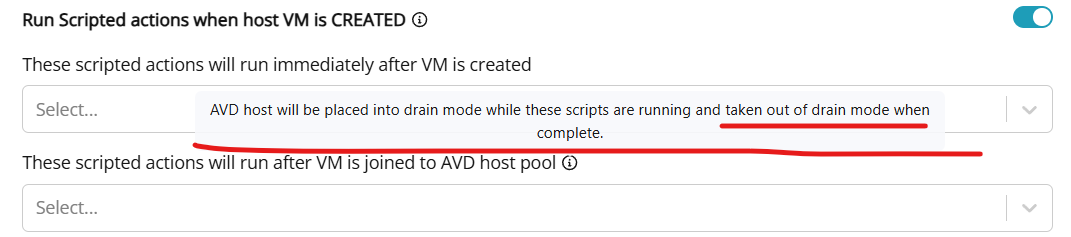
I configure it like in your screenshot but the problem here is the message shown below

So, when script is run after the VM is joined to the pool, Nerdio puts the host in drain mode, executes the script, then takes it out of drain mode. So the script runs fine and it puts the host in drain mode indefinitely, but then Nerdio takes it out of the drain mode when the script completes, which defeats the whole purpose of the script. We were so close to make this happen, yet far away.
Any help with this is greatly appreciated.

Florian Dushniku I can share an idea with you first:
Create a runbook on Nerdio's automation account (or your own). As input parameters via webhook you enter all information to find the VM. In this runbook, wait a definable number of minutes and then set the tags to exclude the VM from Autoscale and set the drain mode. You just have to manage the authentication against Azure in the runbook (there are various options).
Then you create a scripted action that starts the runbook via webhook and provides the parameters. The script runs, Nerdio does its thing, and then after the delay, your runbook sets the drain mode and takes the VM out of autoscale.
I can help with all of these elements, but don't currently have anything that I can share like this. If more explanation is needed, you can write to me and we can talk on the phone. If necessary, I would then create a solution if that makes sense.
Greetings
Stefan
Hi Stefan,
I appreciate you for the idea. I kind of get what you are describing, but I am not clear on how to make that happen. If we could schedule a call to go over it, it might be helpful. I should be free until the end of the year.
However, I was hoping a simple thing like this would not require all that complexity. In the end, that is the point of having Nerdio, to take away the complexity.
Thank you
Hello Team. Please can I have a follow up on this? We need a way to keep VMs in drain mode after creation for several hours. Alternatively, a trigger-action process can be developed, where we can configure a trigger like "VM creation" that fires the action "run custom script" or similar.

Hi Florian, thank you for the submission and examples.
We have captured this request and will investigate with our development team.
Hi Florian, a quick note on your last comment.
You are already able to Run Scripted Actions based on different triggers.
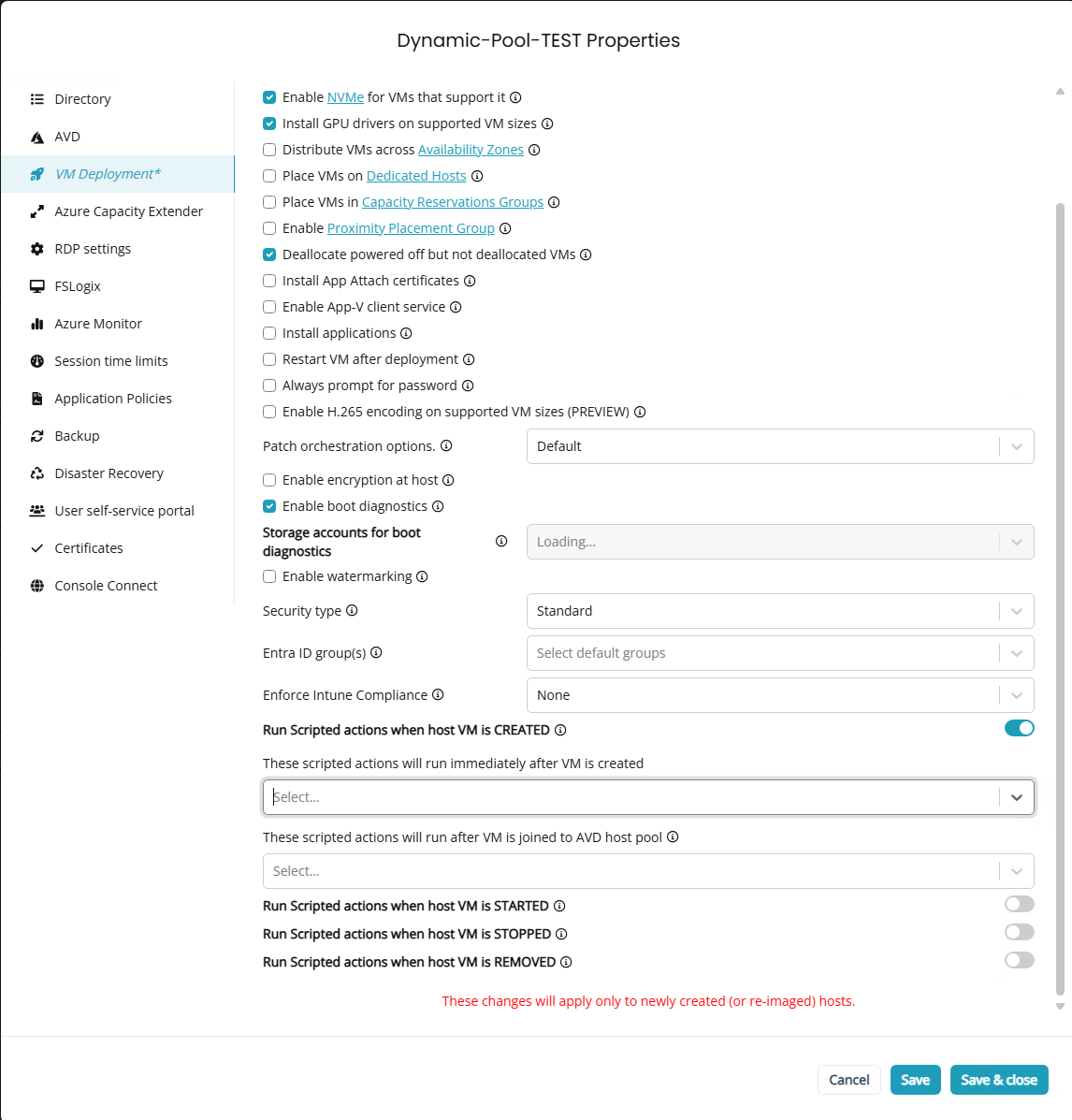
Hi Raul. I can, but as I explained above it does not work as needed for this case. My script puts the machine in drain mode, but Nerdio takes it out after.
Hi Florian. Great, I wanted to make sure that was known.
We will investigate adding this natively within Nerdio.
The problem is that Autoscale can reactivate VMs in drain mode if they are not excluded from Autoscale. And a runbook has a maximum runtime.
However, you can easily achieve this yourself. Create two scripted actions of the Azure Runbook type and do the following:
Script 1 (executed under VM Deployment):
- Enable Drain Mode (you can use the other script as an example)
- Use the tag “NMW_AUTOSCALE_RESTRICTION” to disable scale-in and scale-out for this VM. If you do not enter a value, it is valid indefinitely. Otherwise, the value must be something like the following: 2025-05-18T05:51;UTC (corresponds to the end date)
- Create another tag that contains the time when the script is executed, e.g., “DRAIN_MODE.” Use something like this as the value: 05/18/2025 05:51:50 or 2025-05-18T05:51;UTC
Script 2 (scheduled task, every hour):
- Check whether the tag “DRAIN_MODE” has been present for longer than a defined period of time (e.g. 24 hours).
- When the time has come, perform a shutdown
- Then delete the tags ‘NMW_AUTOSCALE_RESTRICTION’ and “DRAIN_MODE”
I hope you can use this as a workaround until the final implementation.
Stefan
Hi Stefan, thank you so much for the idea, but the whole problem is that after running Script 1, Nerdio will take the machine out of drain mode as explained here
I think maybe when developing the solution for this problem, you might leave the current box as it is above, because it works fine for all other scripts, except for a script that is used to actually keep the hosts in drain mode, but I think the solution would be if you guys incorporate this as an available option with a checkbox that we can select to put machines in drain mode at creation and then select for how many minutes/hours/days we want them to be in drain mode, or even indefinitely.
When autoscale runs, it will take the hosts out of drain mode, so this solution should be coupled with the hosts getting excluded from autoscale. So, basically we can control the amount of time the machine stays in drain mode through the amount of time that we configure them to be excluded from autoscale.
Please sign in to leave a comment.
Comments (12 comments)